HDR Photography Guide Book
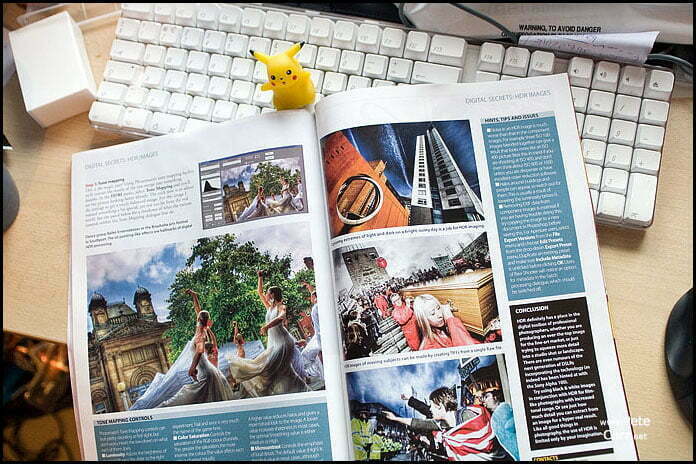
Its finally out. The book based on this guide is available to buy. Why buy it when this guide is free? Well firstly because this guide is nearly 3 years old. Secondly because this guide is around 3,000 words and the enhanced version in the book is 10,000. So its more indepth. Thirdly because the guide in the book is only 1 of 10 chapters. The book has 304 pages of HDR goodness. Lots to read. Landscapes, how to do black and white, panoramas, cross processing, toning, people, moving subjects. Its got it all. You can buy itfrom Amazon US andAmazon UK. Enjoy.
If you want to know how to take photos such as these, then read on.


Contents
- What’s new?
- Aims of this tutorial
- What is HDR?
- Tools Needed
- Step 1: Source Images
- Step 2: Generating a HDR image
- Step 3: Tone Mapping
- Real World Examples
- Issues with HDR
- Extras
- Conclusion
- Credits and Links
What’s New?
Photomatix discount code
You can now use the discount code “VanillaDays” when you buy Photomatix to get 15% off. Put it on when you buy it to use it.
I’ve reorganised this guide to include more on Photoshop’s HDR feature and why I feel that Photomatix’s is better. The latest version of Photomatix will detect if your TIFF’s have the same EXIF info and it will ask you to confirm which images have which exposure settings. This means you don’t have to remove the EXIF from them anymore. A great feature.
This guide has also been featured in the November issue of Professional Photographer. I think that’s an official stamp of approval from the photography industry that HDR is indeed great for photographers world wide. It can produce nice balanced images on harsh sunny days, or it can create arty pictures of already stunning landscapes.


Aims of this tutorial
The main aim of this tutorial is to help people use HDR techniques to produce photos with a higher dynamic range than they normally get in a standard out of the camera photo. I will show you how to take a shot from the one on the left, to the one on the right.


What is HDR?
HDR means ‘High Dynamic Range’. Using software like Photomatix you can create images with a more detail in the highlights and shadows than you can with a normal photo from todays digital cameras. Its similar to the old technique of exposure blending. Taking one photo for the sky and one for the ground, then merging them both together in Photoshop. HDR takes it a step further by increase the amount of detail in the image and allows you to create some unique photos. You can use it carefully to create natural looking photos or you can use it creatively to create atmospheric and emotive photos. The choice is yours as to how you process the end result.
Tools Needed
A RAW editor such as Aperture, RawShooter, or Photoshop. Secondly, the HDR program. I use Photomatix.
Step 1: Source images
There are two main ways to create the source images needed for HDR. You can either use AEB, auto exposure bracketing, on your camera to take 3 images while you are out, or you can use RAW to take 1 image and then use a RAW editor to produce 3 shots back at your computer. I shall start with auto exposure bracketing.
Auto Exposure Bracketing (AEB)
The main advantage with AEB is that you can get better source images with less noise. For example, a sunset. You would normally get really dark shadows and enhancing them later from 1 single RAW file would increase the noise. With AEB you can take a completely seperate image for the shadows and one for the highlights to preseve the detail and keep the noise to a minimum. The disadvantge to this approach is that anything moving in the image will become blurred and repeated as it moves across the 3 images. To start with you will need a camera that has the AEB mode and a tripod. You will also need a tripod so that the 3 shots you take can be perfectly aligned later. Go to the menu on your camera and set the AEB mode to -2 / +2 stops.


It should look like the right image after the changes. Compose your shot, and set the camera up as your normally would to take a picture. Now after you take a picture you will see the exposure compensation level drop down to -2. Take another picture and you will see it goes up to +2. You will notice the shutter speed or aperture changes too. This allows you to get the three shots for the shadows, a balanced image and for the highlights. You now have the 3 shots required to produce a HDR image.
Using a RAW Editor
The other way to produce the 3 shots needed is to take 1 photo and adjust in a RAW editor such as Aperture, Photoshop or RawShooter. The main advantage to this is that you can produce a HDR shot with moving subjects such as people or cars. The disadvantage is that if you use an image with very dark shadows and you’re trying to boost the exposure, the result will be quite noisey.
Load your photo into the editor, then set the exposure level to -2 and save the image as a 16bit TIFF without any metadata such as EXIF info. This is the important part. If you save it with EXIF info you will find that Photomatix relies on that info to produce the HDR shot. The problem with this is that the shutter speed and aperture values will be the same across the 3 images and Photomatix won’t know which image is -2, 0 and +2. Set the exposure level to 0, save that and then set it to +2 and save that image.

This is how it looks in Aperture. You will now have the 3 images needed to produce a HDR image.
Step 2: Generating a HDR image
Open the 3 images into Photomatix. From the HDRI menu select Generate HDR. Photomatix will ask you if you want to use the 3 opened images or load in some. Make sure it has “Use opened images” selected and click ok. Now Photomatix will confirm the exposures for each image. 9 out of 10 times it will get it right, but just incase make sure that each image has the correct exposure settings. In the case of this guide they should be +2, 0, -2. Click ok, then check that “use standard response curve” is selected. If you are using 3 images taken at the scene tick the “Align LDR images before generating HDR image” option just so that Photomatix aligns the images for you. Click ok and after a few minutes you will see your HDR image. It won’t look exactly right just yet. Some areas will be slightly over-exposed and it’ll look odd.
Step 3: Tone Mapping
This is the magic part. Using the Tone Mapping feature in Photomatix will convert your HDR image into something usable. Goto the HDRI menu and select Tone Mapping. You will see how your photo looks more like a standard HDR image. The sky will be nicely exposed, as will the ground. The trick now is to adjust the settings to get a nice balanced image. You could be creative and go for something a little more fun if you feel like it. For the image in this guide I wanted something special and yet not too far from the real world. I’ll start with a quick run down of the various options.
Luminosity
Adjusts the brightness of the shadows. Moving the slider to the right has the effect of boosting shadow details and brightening the image. Moving it to the left gives a more natural look to the tone mapped image.
The optimal value depends on the image and the effect you want to achieve.
Strength
Controls the strength of local contrast enhancements. A value of 100% gives the maximum increase in local contrast.
The optimal value depends on the image and the effect you want to achieve.
Color Saturation
Controls the saturation of the RGB color channels. The greater the saturation, the more intense the color. The value affects each color channel equally.
White Clip – Black Clip
From watching the way the histogram changes, the white clip adjusts the highlight contrast and the black clip adjusts the shadow contrast.
Micro-smoothing:
Basically this setting should be called “How arty do you want your shot?” At 0 you can get the cool arty style HDR images with all the detail in everything from walls to clouds you didn’t know where there. However, if you want a nice simple blended exposure photo set it to 30. 95% of the image should be perfectly exposed as if you spent hours putting them together in Photoshop. This is a great new addition to Photomatix as it allows people to use the software as they see fit. If they want a nice photo that is perfectly exposed then they can get that just as if they used ND Gradient filters on their lens. However, if like me they want something a bit more unique they can drop the micro-smoothing down and get something dramatic.
Light smoothing:
Never set this below 0 as you will get horrible results.
Microcontrast
Controls the accentuation of local details. The default value (High) is the optimal value in most cases. However, this control may be useful in the case of a noisy image or when the accentuation of local details is not desirable (e.g. seams of a stitched pano in a uniform area may become visible when local details are too much enhanced).
Real World Examples
Natural Feel

Settings used;
Luminosity +8, Strength 25%, Colour Saturation 65%, White Clip 0.220, Black Clip 0.075
Natural Feel 2

Luminosity -2, Strength 80%, Colour Saturation 65%, White Clip 2.230, Black Clip 0.490
Being Creative

Luminosity +5, Strength 75%, Colour Saturation 65%, White Clip 4.305, Black Clip 1.140
As you can see, when you increase the strength, luminosity and clipping you increase the visible detail in the image. You can see more detail in the building and the clouds.
Issues
Shooting on high ISO will increase the noise in the image. For example, using ISO100 can produce a noise image like ISO400. So if you use ISO400 it will be very noisy. Don’t even think about ISO800 or 1600 unless you are desperate and have a great noise reduction technique. I find that Noiseware doesn’t do a thing against the noise in a HDR shot, but Noise Ninja can. However using Noise Ninja will soften the image.
Halo effects around buildings and people can occur too. I’ve read that this can be due to lowering the luminosity below 0.
Extras
Generating a HDRI from a single RAW file
Using the latest version of Photomatix, 2.3.1, you can load a single RAW file and generate a HDR image. Simply goto File -> Open and then select the RAW file. Photomatix will load the image and generate a HDR from it. You will still need to tone map the image after. I tried it but I didn’t really like the results. The image was too noisy and had some corruption in certain areas. The best method is still to take 3 bracketed images on site.

1 RAW vs 3 RAW’s
There is a lot of talk on the Web about true HDR images. Lots of people argue that a HDRI from 1 RAW file isn’t a true HDRI. I personally believe that the end result is all that matters. If you sell a print in a gallery is the buyer really going to care if its a true HDR image or a “HDR” image? Are they really that bothered about how many bits of colour there are or just how much data there really is in the image? Probably not. They may ask how you created it out of a passing interest but are they really truely going to care? I doubt they will. They’ll take it home and hang it up and look at the end result. They will enjoy the end result. Its all about the end print in my opinion, not about how nerdy the process was. Out of interest I decided to produce a HDR image from 1 RAW and 3 RAW’s to compare the end result.

HDR from 1 RAW file

HDR from 3 RAW files
As you can see from the photos they are fairly close. There is more detail and better colour in the image produced from 3 RAW photos. The right hand side wall isn’t burnt out like on the 1 RAW image, and neither is the blue wall to a lesser extent. There is also more detail in the sky and the whites aren’t as grey. Things like this can corrected to a certain extent in Photoshop so I wouldn’t worry too much. I did find that reducing the “Colour Saturation” for this image in the “Tone Mapping” settings did produce a nicer shot. There was more detail in the blue sections and the wall on the far right wasn’t burnt out as much. For the most part the images are similar and it does show that a 1 RAW HDR image can produce a striking result. It may not be a true HDR shot and its not a Low Dynamic Range image but what it can be is a stunning photo with a little effort.
Photoshop vs Photomatix
With Photoshop you can create a HDR image from 3 RAW files very easily. Simply open them in PS, goto File -> Automate -> Merge to HDR. It’ll ask you where the source images are and then generate the HDR. It will then display the image on screen so you can adjust the histogram to make sure the image isn’t overly dark or too blown out. Once you have done that goto Image -> Mode -> 16 or 8 bit and it will bring up another dialog box. From the drop down select “Local Adaption.” Using this you can tweak the levels in the image. You have to be careful as it can cause the image to look horrible. The end result will be a well balanced image that you can further edit in Photoshop. The results are quite natural looking and don’t feature any of the extreme looks that a lot of HDR images do. For more information read this excellent guide on Photoshop’s HDR feature.

You can achieve a similar result using Photomatix. Convert the RAW files to 16bit TIFF’s and generate a HDR image using this guide. Once in the Tone Mapping interface set the strength to 1, Micro-smoothing to 30, luminosity to 0, light smoothing to 0 and micro-contrast to 0. The image will then be similar to Photoshops. I found that Photomatix’s result was brighter in the shadows, but this was before playing with the “Local Adaption” feature in Photoshop. The benefit of Photomatix over Photoshop is that you have far more control over the end image. You have control over the luminosity, micro-contrast, light smoothing, micro-smoothing, etc. So you have the ability to tweak the image further than you can in Photoshop. How far is up to you.

As you can see they are virtually the same. However, using the features in Photomatix you can create stunning pieces of art like the following;
HDR from JPGs
I’ve ran a test using my dancer image and it seems that you can get just as good a result using 3 JPGs instead of 3 TIFFs. Its probably better to use TIFF’s as they will store more detail, but if you want can use JPGs well enough. There is a definite difference in using JPGs and TIFFs. I prefer the TIFF look. JPGs seem more saturated and noisier.

Removing EXIF
This is now redundant as the latest version of Photomatix, 2.3.1, will now detect if the EXIF info is the same and will ask you for confirmation on the various exposures of each shot. However if you need to you can use these tips to remove the EXIF. If you’re having trouble removing the EXIF from a TIFF I’ve found a couple of things you can use. You can copy the TIFF into a new document as save it. Useful when you don’t want the lossiness of save for web [eg PSDs or TIFFs] and you can create an action to do it as a batch function. There is also a program called, IrfanView that can supposedly edit EXIF.
For Aperture users, when you export versions click on the export preset drop down, then edit presets. If you select the full size TIFF or JPG preset then click + it will duplicate that. Then make sure that “include metadata” is unticked and click ok.
Conclusion
So that just about wraps up my HDR guide. I hope you found it interesting and a starting point for your own HDR images. Some people see HDR as just another fad but I really believe that it could have plenty of real world applications. I’m already exhibiting a couple of my shots in Liverpool. It definitely has its uses, but as with everything too much of a good thing can be bad for you. Feel free to check out my other HDR photos.
Credits and Links
Thanks to stollerdos for directing me to this great tutorial on HDR that explained the single RAW file trick.
- Luminous Landscape Photoshop HDR Tutorial
- High Dynamic Range Workshop
- How to create professional HDR images using Photoshop
- HDR from 1 JPG
- The Definitive Guide to Realistic High Dynamic Range Images
- How to Create High Dynamic Range Images
- Modern HDR photography, a how-to or Saturday morning relaxation
- NatureScapes: The HDR Landscapes Tutorial


